Authorization Guide
The Mimeeq REST API uses API key authentication. Every request must include a valid API key in the X-API-KEY header. This guide covers how to generate your key, use it in requests, and handle authentication errors.
Prerequisites
Before you can access the REST API, you need:
- An active Mimeeq account with Tier 1 (customer admin) access
- Permission to access customer account settings in the admin panel
API keys are tied to your customer account, not to individual users. Anyone with access to the account settings can generate or regenerate the key. The key provides access to all products owned by or shared with your account.
Generating an API Key
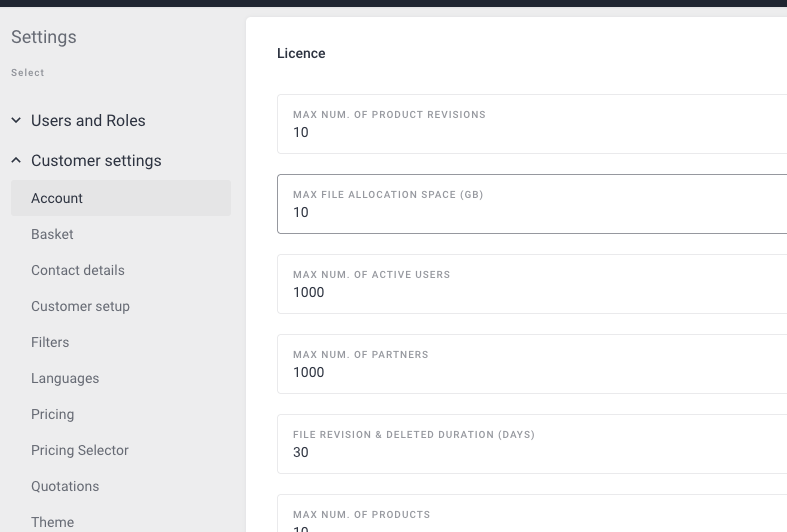
- Sign in to the Mimeeq admin panel and navigate to Admin → Settings → Account.
- Scroll down to the API section. Click Generate to create a new API key. You can preview the key by clicking the eye icon, or copy it to your clipboard with the Copy button.
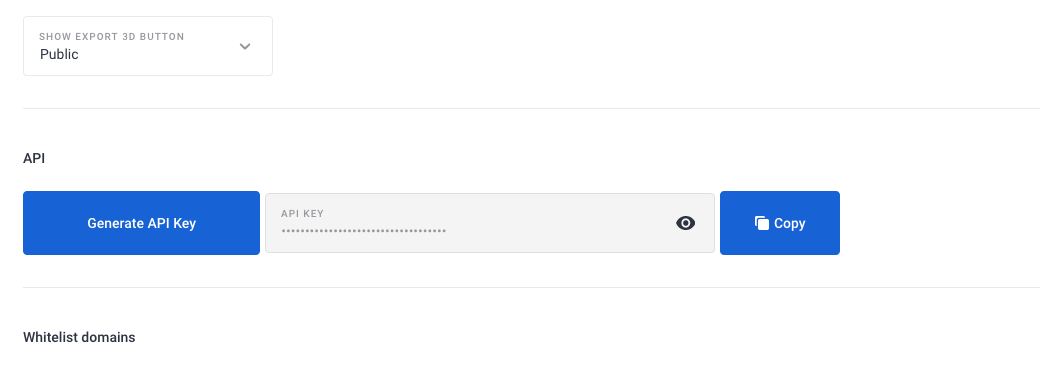
You can have only one active API key at a time. Generating a new key immediately invalidates the previous one. Any integrations using the old key will start receiving 401 errors.
Using the API Key
Pass the key in the X-API-KEY header on every request:
curl -X GET "https://mimeeqapi.com/get-products-general-info" \
  -H "X-API-KEY: your_api_key_here"
The same header works across all REST API endpoints — product info, pricing, short code generation, and product listing. See the API Reference for the full endpoint documentation.
Store your API key in environment variables or a secrets manager rather than hardcoding it. If the key is exposed, generate a new one immediately from the admin panel — the old key will be invalidated automatically.
Authentication Errors
When authentication fails, the API returns one of these responses:
401 Unauthorized — the API key is missing or invalid.
{
  "status": 401,
  "message": "Invalid API Key"
}
403 Forbidden — the API key is valid but doesn't have permission for the requested resource. This can happen if you're trying to access a product that isn't owned by or shared with your account.
API Key Scope
The API key grants access based on your customer account:
- Owned products — all products created under your account are accessible
- Shared products — products shared with your account by other customers are accessible (the
isOwnfield in the product listing response indicates ownership) - Pricing — pricing access depends on which price lists, companies, or embed templates you pass in the request parameters
The REST API key is separate from the embed authentication system. If your integration also uses the mmq-auth component for end-user login, those are independent authentication mechanisms — the REST API key authenticates your server-side requests, while mmq-auth handles browser-based user sessions.
Next Steps
- Architecture Overview — how the REST API fits into the broader integration model
- API Reference — full endpoint documentation with request/response schemas
- Short Codes — understanding the different short code types used in API requests
- Ecommerce Integration — using the REST API alongside client-side events for cart integration
- Custom Pricing Integration — combining the pricing endpoint with client-side custom pricing